How to Edit Viral Radha Krishna AI Video
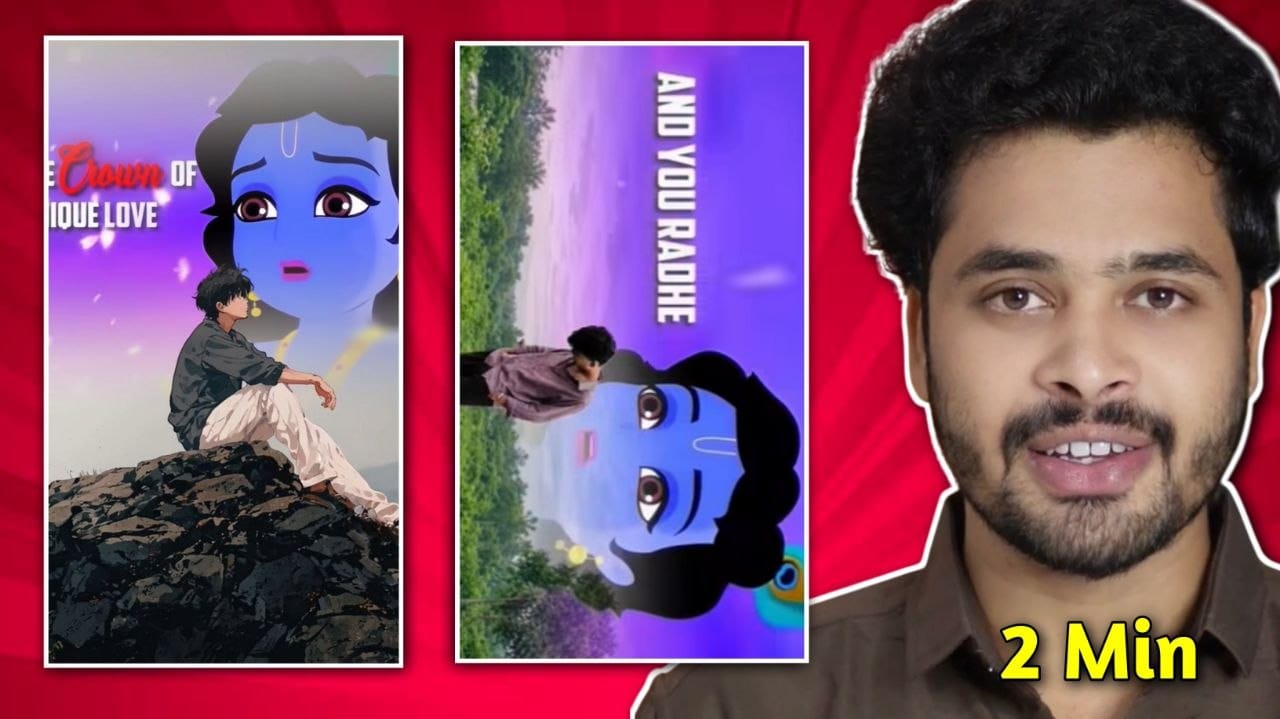
If you’ve been scrolling through Instagram Reels, YouTube Shorts, or Facebook lately, you’ve probably noticed a new trend taking over social media—Radha Krishna AI transformation videos. These videos usually begin with a normal selfie or short clip and then transition into a beautiful AI-generated Radha Krishna-inspired scene with glowing effects, cinematic colors, devotional music, and smooth animations. This editing style has attracted millions of views because it combines spirituality, creativity, and AI-powered visuals into short-form content that keeps viewers watching.
The trend has grown rapidly thanks to creators using AI image generators, CapCut templates, and mobile editing apps to produce professional-looking videos without expensive equipment. CapCut currently hosts multiple popular Radha Krishna templates with thousands of uses, showing how widely this editing style has spread among content creators. ([CapCut][1])
Why Are Radha Krishna AI Videos Going Viral?
The biggest reason behind this trend is emotional engagement. Videos inspired by Radha and Krishna often feature vibrant temple-style backgrounds, soft golden lighting, flower petals, divine costumes, and peaceful devotional music. When combined with AI-generated artwork and cinematic editing, these elements create visually striking reels that encourage viewers to watch until the end and replay them.
Another reason is that Instagram and YouTube prioritize short videos with high audience retention. A surprising AI transformation in the first few seconds increases the likelihood that viewers will watch the entire clip. Creators also benefit from trending templates, which make professional editing accessible even to beginners. Recent CapCut template pages show popular Radha Krishna edits requiring only one or two clips, making it easy for anyone to participate in the trend. ([CapCut][1])
Apps You Need
| Purpose | Recommended App |
|---|---|
| AI Image Generation | ChatGPT, Gemini |
| Video Editing | CapCut |
| Alternative Editor | VN Editor |
| Background Removal | CapCut AI Cutout |
| Color Grading | Lightroom Mobile |
These tools allow creators to produce high-quality videos entirely on a smartphone.
Step 1: Record a High-Quality Original Video
Start by recording yourself in portrait mode (9:16). Choose natural daylight or a well-lit indoor location to ensure your face is clear. Stand against a simple background so AI tools can detect your subject more accurately.
Keep the camera stable by using a tripod or placing your phone on a fixed surface. Simple actions such as walking slowly, turning your head, joining your hands in a respectful greeting, or looking toward the sky work well for devotional transitions. Record for at least 8–10 seconds to give yourself enough footage for editing.
Step 2: Generate a Radha Krishna AI Image
Once your original video is ready, generate an AI image that matches the transformation style. Many creators use prompts that describe cinematic lighting, traditional attire, floral decorations, temple architecture, and glowing divine effects.
Example Prompt
Ultra-realistic Radha Krishna inspired portrait, golden divine aura, Vrindavan temple background, cinematic lighting, intricate traditional clothing, colorful flowers, soft volumetric light, ultra detailed, 8K quality, realistic facial features.
Generate several versions and select the image that most closely resembles your original subject while maintaining a respectful artistic style.
Step 3: Create the AI Transformation
Import both the original clip and the AI-generated image into CapCut or VN Editor. Place the AI image at the exact moment where you want the transformation to occur.
For smoother transitions, use:
- Zoom Transition
- Flash Effect
- Motion Blur
- Camera Shake
- Speed Ramp
- Gaussian Blur
Many creators also use ready-made Radha Krishna templates that automatically apply transitions and effects with minimal effort. Current CapCut templates support one-clip and two-clip workflows, making editing much faster. ([CapCut][1])
Step 4: Add Cinematic Effects
Effects are what transform an ordinary edit into a premium-looking reel. Add subtle golden glows, floating particles, lens flares, bloom lighting, and soft color grading to enhance the devotional atmosphere.
Avoid adding too many filters or excessive transitions, as they can distract from the main transformation. A clean and elegant visual style usually performs better than an over-edited video.
Step 5: Add Devotional Music
Music is one of the most important parts of this trend. Choose audio that matches the emotional tone of your visuals. If you’re posting on Instagram or YouTube Shorts, using music from each platform’s official library can improve discoverability while helping you avoid copyright issues.
Sync the transformation with the beat drop or a powerful instrumental moment. Proper beat synchronization makes the transition feel natural and more satisfying to watch.
Best Export Settings
| Setting | Recommended Value |
|---|---|
| Resolution | 1080 × 1920 |
| Frame Rate | 60 FPS |
| Format | MP4 (H.264) |
| Bitrate | 15–20 Mbps |
| Aspect Ratio | 9:16 |
These settings deliver sharp visuals while remaining optimized for Instagram Reels and YouTube Shorts.
SEO Tips to Help Your Video Reach More People
Creating a visually appealing video is only part of the process. To maximize reach, optimize your content with searchable titles, captions, and hashtags.
Some useful keywords include:
- Radha Krishna AI Video
- AI Devotional Reel
- Instagram AI Transformation
- CapCut Radha Krishna Template
- AI Krishna Edit
- Bhakti Shorts
- AI Reel Tutorial
Use a compelling thumbnail that clearly shows the transformation. Keep captions descriptive and include relevant hashtags such as #RadhaKrishna, #AIReels, #BhaktiShorts, #CapCutTemplate, and #YouTubeShorts.
Common Mistakes to Avoid
Many creators lose views because of avoidable editing mistakes. Poor lighting during recording can make AI transformations look unnatural. Low-resolution AI images may appear blurry after export. Overusing transitions, effects, or color filters can make the video look cluttered.
Also, be mindful of copyright. Use licensed or platform-approved music whenever possible, and clearly present AI-generated devotional imagery as artistic content rather than historical or religious documentation.
Radha Krishna Video Download
DOWNLOAD
capcut app Download
DOWNLOAD
Conclusion
The Radha Krishna AI video trend is an excellent example of how AI and mobile editing tools have made cinematic content creation accessible to everyone. With a smartphone, an AI image generator, and a video editor like CapCut or VN Editor, you can create stunning devotional reels that capture attention on Instagram and YouTube Shorts. The key is to focus on smooth transitions, high-quality visuals, respectful artistic presentation, and engaging storytelling rather than relying solely on effects.
As the trend continues to evolve, experimenting with new prompts, templates, and editing styles will help your content stand out. By combining creativity with consistent posting and SEO optimization, you can increase your chances of reaching a wider audience and building a loyal community around your content.
Frequently Asked Questions
1. Which app is best for editing Radha Krishna AI videos?
CapCut is one of the most popular choices because it offers AI tools, transitions, templates, and mobile-friendly editing features.
2. Can beginners create these videos?
Yes. Many templates require only one or two clips, making them suitable even for first-time editors. ([CapCut][1])
3. Do I need a DSLR camera?
No. A modern smartphone with good lighting is usually enough to create high-quality reels.
4. Which aspect ratio should I use?
Use 9:16 for Instagram Reels, YouTube Shorts, and Facebook Reels.
5. Can AI-generated devotional videos go viral?
There is no guaranteed formula for virality, but videos with strong visual quality, engaging transitions, good audience retention, and consistent posting are generally more likely to perform well.